
Piso WiFi – 10.0.0.1 Login, Pause Time, Portal & Complete Guide
Piso WiFi is a convenient way to access affordable internet through a pay-per-use wireless hotspot. Instead of subscribing to a long-term connection, users can connect to a nearby Piso WiFi network, open its portal, purchase internet time, and browse until their session expires. Many Piso WiFi systems also provide features such as pause and resume, vouchers, time-based rates, and different payment options.
One of the addresses commonly associated with Piso WiFi is 10.0.0.1. Depending on the particular machine and network configuration, this local address may be used to reach a customer portal or an administrative interface. However, not every Piso WiFi installation is configured in exactly the same way.
This guide explains how Piso WiFi works, how to connect, how the 10.0.0.1 portal fits into the system, how login and pause time work, and what to do when something does not work as expected.
What Is Piso WiFi?
Piso WiFi is a pay-per-use wireless internet system commonly provided through a vending machine or hotspot. The term “Piso” refers to the small amount users can pay for a period of internet access, although the actual rates and available packages depend on the operator.
A typical Piso WiFi setup combines a wireless network, an internet connection, a captive portal, and software that manages user sessions. A customer connects their phone, laptop, or another compatible device to the hotspot and follows the instructions displayed on the portal.
How Does Piso WiFi Work?
The basic process is straightforward:
- Turn on WiFi on your device.
- Connect to the available Piso WiFi network.
- Open a browser if the portal does not appear automatically.
- Access the Piso WiFi login or captive portal.
- Insert coins or use the payment method supported by the machine.
- Receive the purchased internet time.
- Browse the internet while your session is active.
The exact interface can differ between machines because Piso WiFi systems can use different software and configurations.
What Is a Piso WiFi Vendo?
A Piso WiFi vendo is the physical vending system used to provide internet access. Depending on the setup, it can accept coins, provide vouchers, manage time packages, and connect users to a captive portal.
For users, the important part is usually the wireless network and portal. For owners, the vendo can provide additional controls for rates, sessions, network settings, and other features.
How to Connect to Piso WiFi
Connecting to Piso WiFi normally takes only a few steps.
Step 1: Turn On WiFi
Open your device’s WiFi settings and make sure wireless connectivity is enabled.
Step 2: Connect to the Piso WiFi Network
Look for the network name associated with the nearby Piso WiFi machine and connect to it.
Step 3: Open the Piso WiFi Portal
Some systems automatically redirect you to a login or payment page. If that does not happen, open a browser and try accessing the local portal address used by the machine.
Step 4: Purchase Internet Time
Follow the instructions shown on the portal or vending machine. Depending on the system, access may be provided through coins, vouchers, or another supported payment method.
Step 5: Start Browsing
Once your session is activated, you can use the internet until your purchased time expires or the system requires another action.
If the portal does not appear, the problem may involve your device, browser, network connection, or the machine’s configuration.
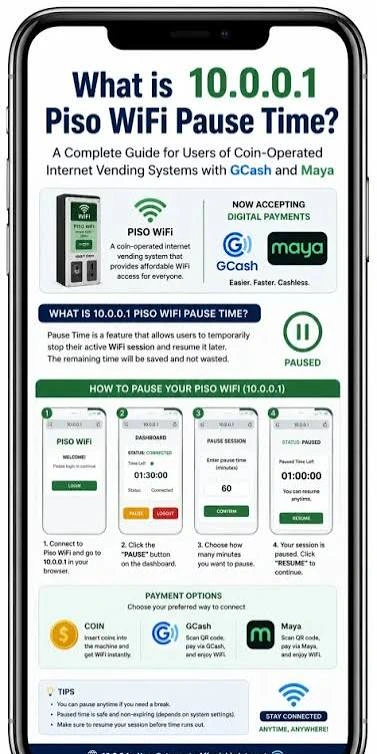
What Is 10.0.0.1 Piso WiFi?
10.0.0.1 is a private IPv4 address commonly used as a local gateway in certain network environments. Some Piso WiFi installations use this address for accessing a local portal or management interface.
It is important to understand that entering 10.0.0.1 does not take you to a normal public website. It is a local network address and generally works only when your device is connected to the appropriate network.
Why Is 10.0.0.1 Used With Piso WiFi?
A Piso WiFi system needs a way for connected devices to communicate with its local network and portal. In some configurations, 10.0.0.1 serves as the gateway or local access point.
However, the actual address can vary depending on the equipment and software used by the operator. If 10.0.0.1 does not work, it does not automatically mean that your device is faulty.
10.0.0.1 Piso WiFi Portal
When a Piso WiFi installation uses 10.0.0.1 for its local interface, connected users may be able to reach the portal through their browser.
The portal can provide functions such as:
- Starting an internet session
- Viewing remaining time
- Purchasing access
- Pausing a session
- Resuming a session
- Entering a voucher
- Viewing connection information
Available features depend on the particular Piso WiFi system.
Customer Portal vs Admin Panel
This distinction is important.
A customer portal is intended for people purchasing and using internet access. An admin panel is intended for the owner or administrator managing the Piso WiFi system.
A customer should not assume that a local IP address gives them access to administrative settings. Admin credentials and available controls depend on the system and its configuration.
Piso WiFi Login
Piso WiFi login generally refers to accessing the local portal that manages a user’s internet session.
How to Login to Piso WiFi
First connect your device to the correct Piso WiFi network. Then open your browser and wait for the captive portal to appear. If it does not appear automatically, you can try the local gateway address used by the machine.
Depending on the system, you may see a payment page, voucher field, session screen, or another customized interface.
10.0.0.1 Piso WiFi Login
If your particular Piso WiFi machine uses 10.0.0.1 as its gateway, entering that address in your browser while connected to the network may open the local interface.
Make sure you enter the address correctly:
10.0.0.1
It is easy to accidentally add an extra number, remove a dot, or enter the address as a search query instead of a browser address.
Piso WiFi Admin Login
Admin login is different from normal customer access. Administrators may have access to settings related to the network, rates, sessions, vouchers, and other system functions.
There is no single username and password that should be assumed to work on every Piso WiFi installation. Credentials depend on the particular software and configuration.
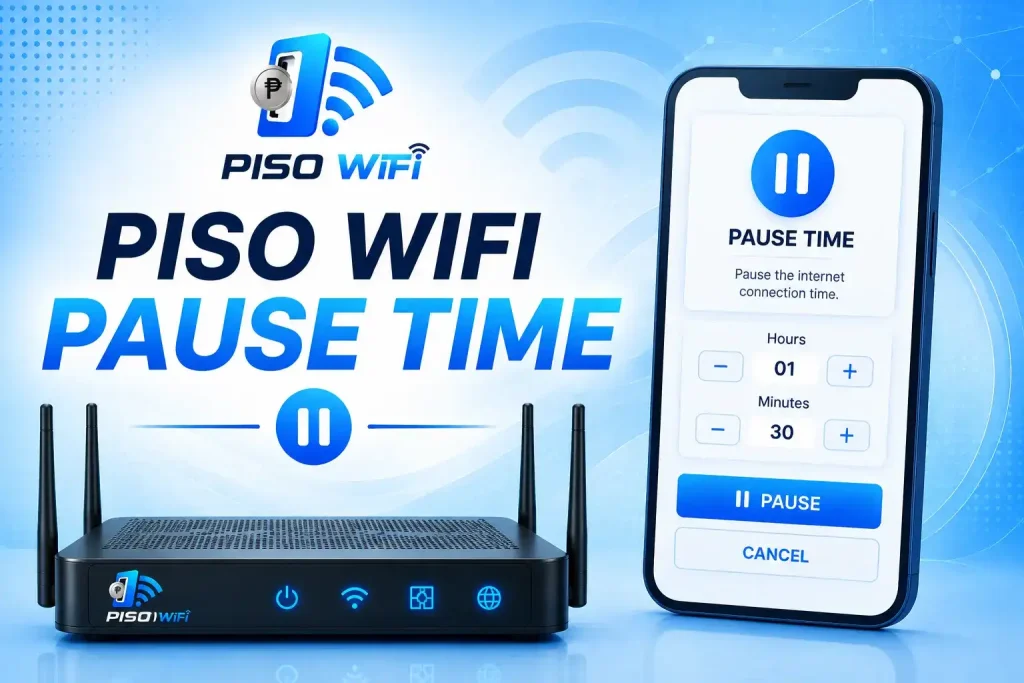
Piso WiFi Pause Time
One of the most useful features available on some Piso WiFi systems is pause time.
Pause time allows an active session to temporarily stop counting down under supported configurations. This can be useful when you need to stop browsing for a while and continue later.
How Does Piso WiFi Pause Time Work?
A supported system may provide a Pause button through the user portal. When the session is paused, the system follows its configured pause rules.
The exact behavior can differ. Some machines may limit how long or how often a session can remain paused, while others may not offer the feature at all.
How to Pause Your Piso WiFi Session
If your machine supports the feature:
- Open the active Piso WiFi portal.
- Locate the session controls.
- Select the Pause option.
- Wait for the portal to confirm the session status.
- Keep the session information available for when you return.
How to Resume Your Piso WiFi Session
When you are ready to continue, reconnect to the appropriate Piso WiFi network and open the session portal. If the system still recognizes your session and the pause period is valid, a resume option may be available.
Do not assume that disconnecting from WiFi automatically pauses your time. Session behavior is controlled by the specific Piso WiFi system.
What If There Is No Pause Button?
If you cannot see a Pause button, several explanations are possible:
- The machine does not support pause time.
- The operator has disabled the feature.
- Your session type does not support pausing.
- The portal has not loaded correctly.
- Your session has already changed status.
For detailed solutions, use the dedicated Piso WiFi Pause Time guide.
Piso WiFi Portal
The Piso WiFi portal is the web interface that connects the user’s device with the hotspot’s access system.
It may appear automatically after connecting to the network. In other cases, you may need to open a browser and access the local gateway.
What Can You Do Through the Portal?
Depending on the configuration, the portal may allow you to:
- Purchase internet time
- Enter a voucher
- Start a session
- Check remaining time
- Pause a session
- Resume a session
- View connection information
Not every portal contains every feature.
What If the Piso WiFi Portal Does Not Appear?
Start with the basics:
- Confirm that you are connected to the correct WiFi network.
- Turn WiFi off and on again.
- Open a browser manually.
- Check whether your device has another active internet connection.
- Temporarily disable a VPN if it interferes with local-network access.
- Try the local gateway used by the machine.
- Restart the connection if necessary.
If other devices also cannot access the portal, the problem may be with the Piso WiFi machine or network rather than your phone or computer.
Piso WiFi Vendo
A Piso WiFi vendo combines the physical vending machine with the software and network components required to provide paid internet access.
How Does a Piso WiFi Vendo Work?
A typical setup connects:
Internet connection → Network equipment → Piso WiFi software → Vendo/payment system → Customer portal
The vendo handles the payment or access process while the software manages sessions and network access.
10.0.0.1 Piso WiFi Vendo
If a vendo system uses 10.0.0.1 as its local gateway, the address may be relevant for accessing the local portal or administrative interface.
However, owners should use the documentation for their particular hardware and software rather than assuming every Piso WiFi vendo uses the same IP address.
Vendo Rates and Time
The amount of internet time provided for a payment is determined by the operator’s configuration. Rates can therefore vary between machines and locations.
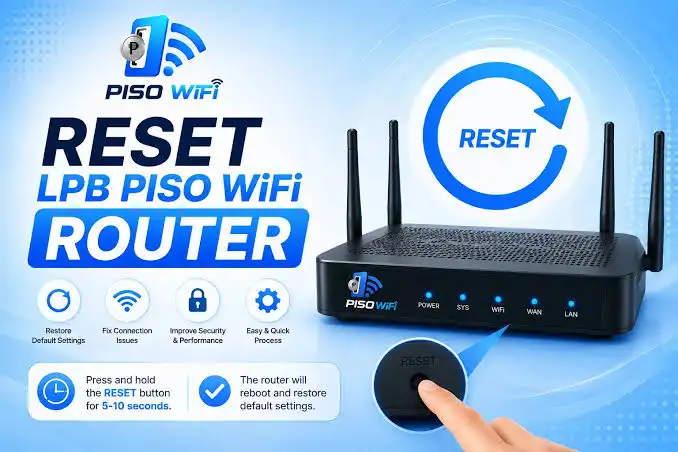
LPB Piso WiFi
LPB Piso WiFi 10.0.0.1
Some LPB configurations use a local 10.0.0.1 address for network or portal access. The exact interface depends on the installed system.
LPB Piso WiFi Login
The login process generally begins by connecting to the relevant LPB Piso WiFi network and opening its local portal. Administrative access is separate from normal customer use.
LPB Piso WiFi Pause Time
Pause functionality depends on the software configuration and enabled features of the particular system. If a Pause button is available, it will normally appear within the appropriate user session interface.
For detailed LPB instructions, see our dedicated LPB Piso WiFi guide.
Piso WiFi Systems & Platforms
Piso WiFi is not one single software configuration. Different platforms and setups can provide different interfaces and features.
Common names associated with the Piso WiFi ecosystem include:
LPB Piso WiFi
A Piso WiFi system frequently associated with 10.0.0.1, portal access, and session management.
AdoPiSoft
A software platform used in some coin-operated or voucher-based WiFi setups.
PisoFi
A platform focused on managing coin-operated WiFi hotspot systems, with features that can include client management, rates, tickets, and sales information.
JuanFi
Another system associated with Piso WiFi and vendo deployments.
1Click Piso WiFi
A Piso WiFi system that may appear in searches related to portal access, login, and network management.
Why Do Piso WiFi Systems Work Differently?
This is important when following online instructions. A guide written for one system may not exactly match another because the software, hardware, gateway address, portal design, and enabled features can differ.
Always identify the system you are connected to before changing settings or following administrative instructions.
Piso WiFi on Chrome, Android & Windows
Piso WiFi can be accessed from many devices, but the portal experience can vary depending on the operating system and browser.
Chrome Piso WiFi Pause Time
Google Chrome can be used to access the Piso WiFi portal when the device is connected to the hotspot. If the captive portal does not appear automatically, open Chrome and access the local gateway used by the machine.
Piso WiFi on Android
Android users can connect through WiFi settings and use a browser to access the portal. If you need to identify the gateway, check the network details for the connected WiFi connection.
Piso WiFi on Windows
On Windows, connect to the Piso WiFi network and open a browser. If you need to identify the local gateway, Windows network information can show the address being used by the connection.
Device-specific instructions are covered in our dedicated Piso WiFi Android, Windows, and Chrome guide.
Common Piso WiFi Problems & Solutions
Even when the basic setup is simple, users can encounter connection and portal problems.
10.0.0.1 Is Not Opening
First confirm that you are connected to the correct Piso WiFi network. A private gateway address generally cannot be reached through an unrelated network.
Also check that the address is entered correctly.
Piso WiFi Portal Is Not Showing
Try opening a browser manually, reconnecting to WiFi, and temporarily disabling a VPN or other network tool that may interfere with captive-portal detection.
Connected to Piso WiFi but No Internet
Being connected to a WiFi network does not necessarily mean that an active internet session has been purchased.
Check the portal and confirm that your session is active.
Piso WiFi Login Is Not Working
Check the network connection, portal address, and session status. If the problem affects multiple users, the machine or hotspot may require attention from its operator.
Pause Button Is Missing
The system may not support pause time, the feature may be disabled, or your current session may not qualify for pausing.
Session Expired While Paused
Pause rules are controlled by the underlying system. A pause feature does not necessarily guarantee that a session can remain inactive indefinitely.
Session Disappeared After a Power Cut or Reboot
A power interruption can affect network equipment and active sessions. Whether a session can be recovered depends on the particular software and how it handles session persistence.
Cannot Resume on Another Device
Some systems associate sessions with particular devices or session information. A paused session should not be assumed to transfer automatically between phones or computers.
Common Piso WiFi IP Address Variations
Many users search for Piso WiFi using incorrectly formatted versions of the local IP address.
You may encounter searches such as:
- 10.0.0.0.1 Piso WiFi
- 10.0 0.1 Piso WiFi
- 10.0-0.1 Piso WiFi
- 10.0.01 Piso WiFi
- 10.0.0.0.1 Piso WiFi login
- 1.0.0.1 Piso WiFi
- 1.0.0.0.1 Piso WiFi
These variations should not automatically be treated as different legitimate addresses.
If your Piso WiFi documentation or operator tells you to use 10.0.0.1, enter it exactly as:
10.0.0.1
If that address does not work, find the actual gateway address for the network rather than repeatedly trying random IP variations.
How to Find Your Piso WiFi Gateway IP
If 10.0.0.1 does not open, your network may be using a different local gateway.
Find the Gateway on Android
Open the connected WiFi network’s details and look for information such as Gateway, Router, or Network details.
Find the Gateway on iPhone
Open the WiFi settings for the connected network and check the network information provided by the device.
Find the Gateway on Windows
Windows network information can display the default gateway associated with the active connection.
Why Your Machine May Use a Different IP
The gateway is determined by the network configuration. Hardware, router settings, software, and the Piso WiFi platform can all influence the address.
Therefore, 10.0.0.1 should not be treated as a universal requirement for every Piso WiFi machine.
Piso WiFi Security & Safe Usage
Piso WiFi provides convenient internet access, but users should remember that they are connecting through a public or shared wireless network.
Is Piso WiFi Safe to Use?
The safety of any public WiFi connection depends on how the network is configured and how you use it. Use secure websites, avoid sharing sensitive information unnecessarily, and keep your device and browser updated.
Protect Your Personal Information
Avoid entering sensitive credentials into unfamiliar pages. Make sure the website you are using is the legitimate service you intended to visit.
Don’t Change Admin Settings as a Regular User
Customer access and administrator access are different. Changing router or Piso WiFi settings without authorization can disrupt the service for other users.
Piso WiFi Features
Depending on the platform and operator configuration, a Piso WiFi system may offer several useful features.
Pay-Per-Use Internet
Users pay for the amount of access they need instead of committing to a long-term subscription.
Time-Based Access
Internet access is commonly controlled through purchased time.
Pause and Resume
Supported systems may allow users to temporarily pause a session and resume it later.
Captive Portal
The portal provides an interface for payment, authentication, vouchers, session information, or other functions.
Vouchers or Tickets
Some systems use vouchers or tickets to provide internet access.
Vendo Machine
The physical vendo can handle coins or other supported access methods.
Remember that features are not universal. The software and configuration of the machine determine what users can actually access.
Piso WiFi Pros and Cons
Advantages of Piso WiFi
- Affordable short-term internet access
- Convenient for temporary connectivity
- Simple connection process
- Pay for the time you need
- Useful in locations without convenient personal internet access
- Some systems offer pause and resume
Limitations of Piso WiFi
- Internet speed can vary
- Rates differ between operators
- Pause functionality is not universal
- Portal behavior can differ between systems
- Public WiFi requires sensible security practices
- Service quality depends on the machine and internet connection
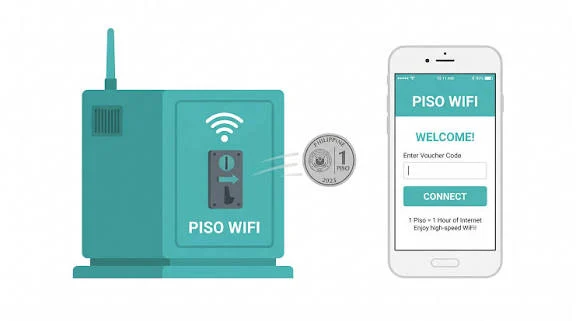
Piso WiFi Rates & Internet Time
Piso WiFi rates are controlled by the machine operator. There is therefore no single price or time package that applies to every Piso WiFi hotspot.
A machine might offer different durations depending on the amount paid, while another system may use vouchers or customized packages.
How Internet Time Is Calculated
Your available time generally begins when the system activates your session. The exact rules for counting, pausing, expiration, and session recovery depend on the software configuration.
What Happens When Your Time Expires?
Once your purchased session reaches its configured limit, internet access may stop until you purchase additional time or start another valid session.
What Piso WiFi Pause Time Does Not Do
Understanding the limitations of pause time can prevent confusion.
Does Disconnecting WiFi Save Remaining Time?
Not necessarily. Simply leaving the WiFi network should not be assumed to pause the session.
Does Closing the Browser Pause Your Session?
Closing the browser does not automatically guarantee that your time is paused.
Can Every Session Be Transferred to Another Device?
No universal rule applies. Some systems may associate session information with the original device or session.
Can Every Piso WiFi Machine Pause Time?
No. Pause functionality depends on the software and configuration of the individual system.
Can Paused Time Expire?
Pause rules vary. A pause feature should not be interpreted as unlimited storage of an internet session.
Frequently Asked Questions About Piso WiFi
What is Piso WiFi?
Piso WiFi is a pay-per-use wireless internet system that allows users to purchase internet access for a specific amount of time.
What is 10.0.0.1 in Piso WiFi?
10.0.0.1 is a private local IP address used as a gateway or local access address in some Piso WiFi configurations.
How do I connect to Piso WiFi?
Connect your device to the Piso WiFi network, open its portal, follow the payment or voucher instructions, and start your session.
How do I open the Piso WiFi portal?
The portal may appear automatically after connecting. If it does not, open a browser and use the local gateway address configured for that Piso WiFi system.
How do I pause Piso WiFi time?
If the machine supports pause time, open your active session portal and select the Pause option. The exact process depends on the system.
How do I resume Piso WiFi time?
Reconnect to the appropriate network and open the session portal. If your session is still valid and the system supports resuming, you may see a Resume option.
Is 10.0.0.0.1 the same as 10.0.0.1?
No. They are different IP address strings. If your Piso WiFi uses 10.0.0.1, enter that address exactly rather than adding an extra number.
Why isn’t 10.0.0.1 opening?
You may not be connected to the correct network, the machine may use another gateway, or the local service may be unavailable.
Why isn’t the Piso WiFi portal appearing?
Reconnect to the hotspot, open a browser manually, and check whether another connection, VPN, DNS configuration, or browser issue is interfering with the captive portal.
Is Piso WiFi safe?
Piso WiFi can be useful for public internet access, but users should follow normal public-WiFi security practices and avoid sharing sensitive information unnecessarily.
Does every Piso WiFi machine support pause time?
No. Pause functionality depends on the particular software, machine, and operator configuration.
Can I resume my session on another device?
It depends on the system. Some platforms may associate a session with a particular device or session identifier.
What is LPB Piso WiFi?
LPB Piso WiFi is one of the systems associated with Piso WiFi vending and hotspot deployments. Its available features depend on the specific configuration.
What is AdoPiSoft?
AdoPiSoft is a software platform used in some coin-operated or voucher-based WiFi hotspot systems.
Final Thoughts
Piso WiFi provides a practical way to access affordable internet through pay-per-use hotspots. For most users, the process is simple: connect to the network, open the portal, purchase internet time, and start browsing.
The 10.0.0.1 Piso WiFi address is an important part of many installations, but it should not be assumed to work identically on every machine. Likewise, features such as pause time, vouchers, admin controls, and session recovery depend on the underlying software and configuration.
Whether you need help with Piso WiFi login, 10.0.0.1, pause time, the portal, a vendo machine, LPB Piso WiFi, or troubleshooting, understanding which system you are connected to is the best starting point.
Use our dedicated Piso WiFi guides to find more detailed instructions for each specific feature and problem.